
Overview
The Journal feature allows users to record reflections, notes, and activities within a learner’s Onefile Eportfolio. Important: This article refers to the legacy Journal feature. To access the enhanced Learning Journal, please contact your Onefile Account Manager about upgrading to the Learning Hub.
User Roles
This feature can be used by:
- All users with access to the learner portfolio
- Learners (if enabled in Centre Settings)
Centre Setting
To allow learners to create their own journal entries, ensure this setting is enabled:
- Allow Learner access to the Learner Journal
Steps
How to Create a Journal Entry
1. Access the Journal
- Click Journal in the navigation bar, or
- Select Journal from the learner’s portfolio page.
2. Create a New Entry
- Click Create Journal Entry.
- Optionally update the pre-entered title.
- Click inside the Journal Entry box to begin typing.
3. Add Details
- Select a Category.
- Enter a Start Date, Start Time, and Duration.
4. Save the Entry
Click Save to add the entry to the portfolio.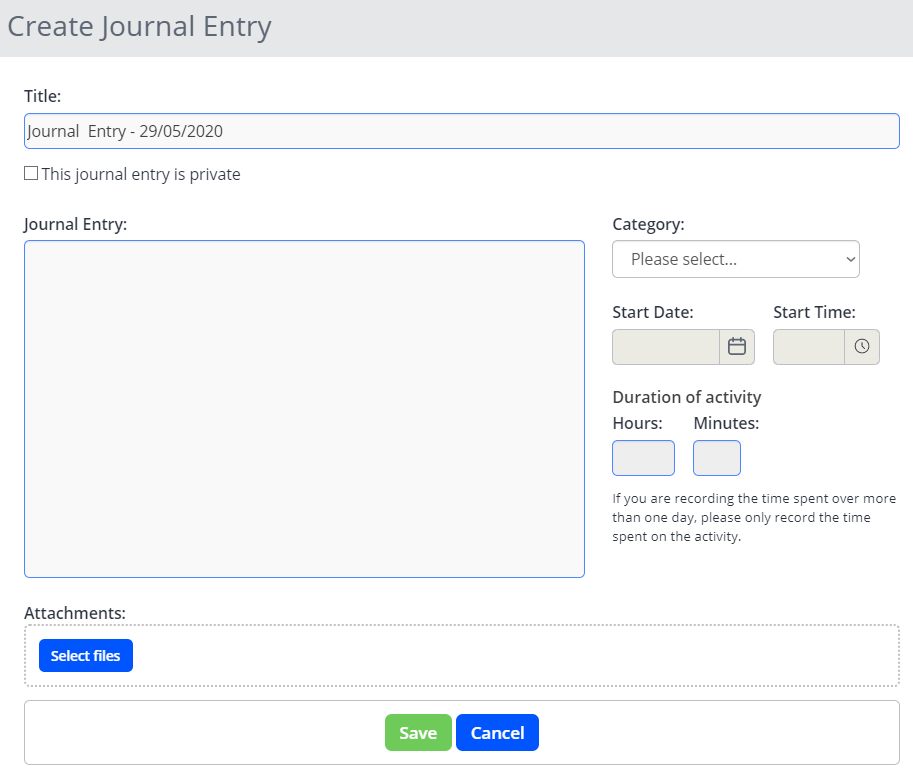
Additional Options
- Upload Attachments: Add supporting documents or files.
- Make Private: Choose to keep the entry hidden from other users (depending on permissions).
✔️ Tip: Upgrade to the Learning Hub for enhanced Journal functionality such as structured reflections, multimedia support and improved reporting.
Terminology
Please note that terminology used in this article may differ depending on your Centre.
Need Help?
If you encounter any issues or have questions, please contact Onefile Support or your internal support channels.