
Overview
The Gap Analysis is a section within a learner’s portfolio that displays all qualification criteria and shows the learner’s current progress against each one. It helps assessors, learners, and quality staff quickly identify which areas have been completed and which still require development or assessment.
Gap Analysis is a valuable tool for monitoring progress, planning assessments, and ensuring learners achieve full coverage of their qualification requirements.
User Roles
This feature can be accessed by:
- All users who have access to the learner’s portfolio
What Gap Analysis Shows
- A full list of qualification criteria and outcomes
- Which criteria have been achieved, partially achieved, or not yet assessed
- Progress indicators (boxes or icons) showing how many pieces of evidence are required
- Live updates when criteria are accepted or rejected
How Gap Analysis Supports Progress Tracking
- Quickly identifies learning gaps
- Helps plan future assessments based on unachieved criteria
- Supports standardisation and consistent quality monitoring
- Shows progress at the level of units, outcomes, or individual criteria
How to Access the Gap Analysis
Follow these steps to view a learner’s Gap Analysis:
- Navigate to the Learner Portfolio.
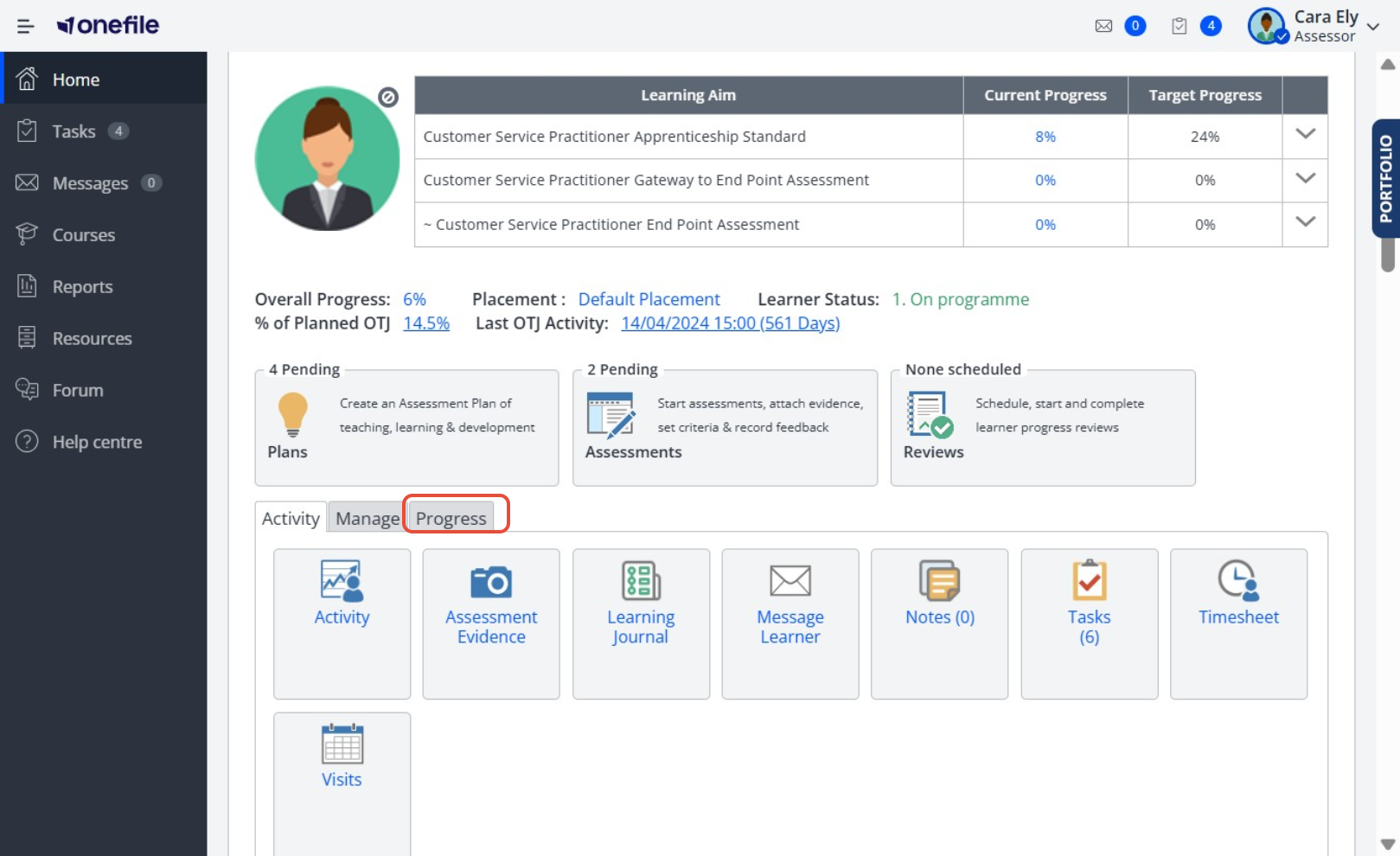
- Click the Progress tab.
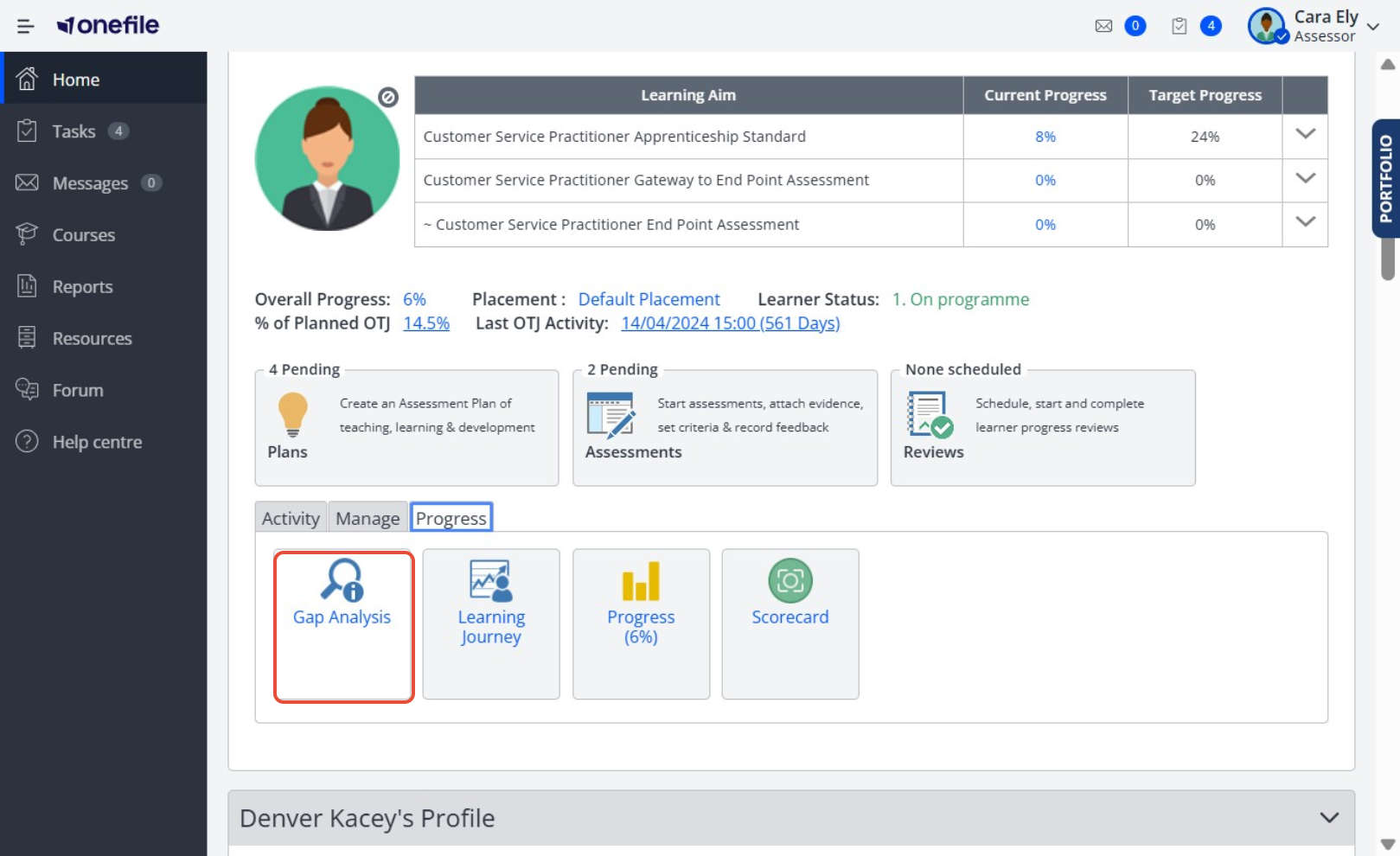
- Select Gap Analysis.
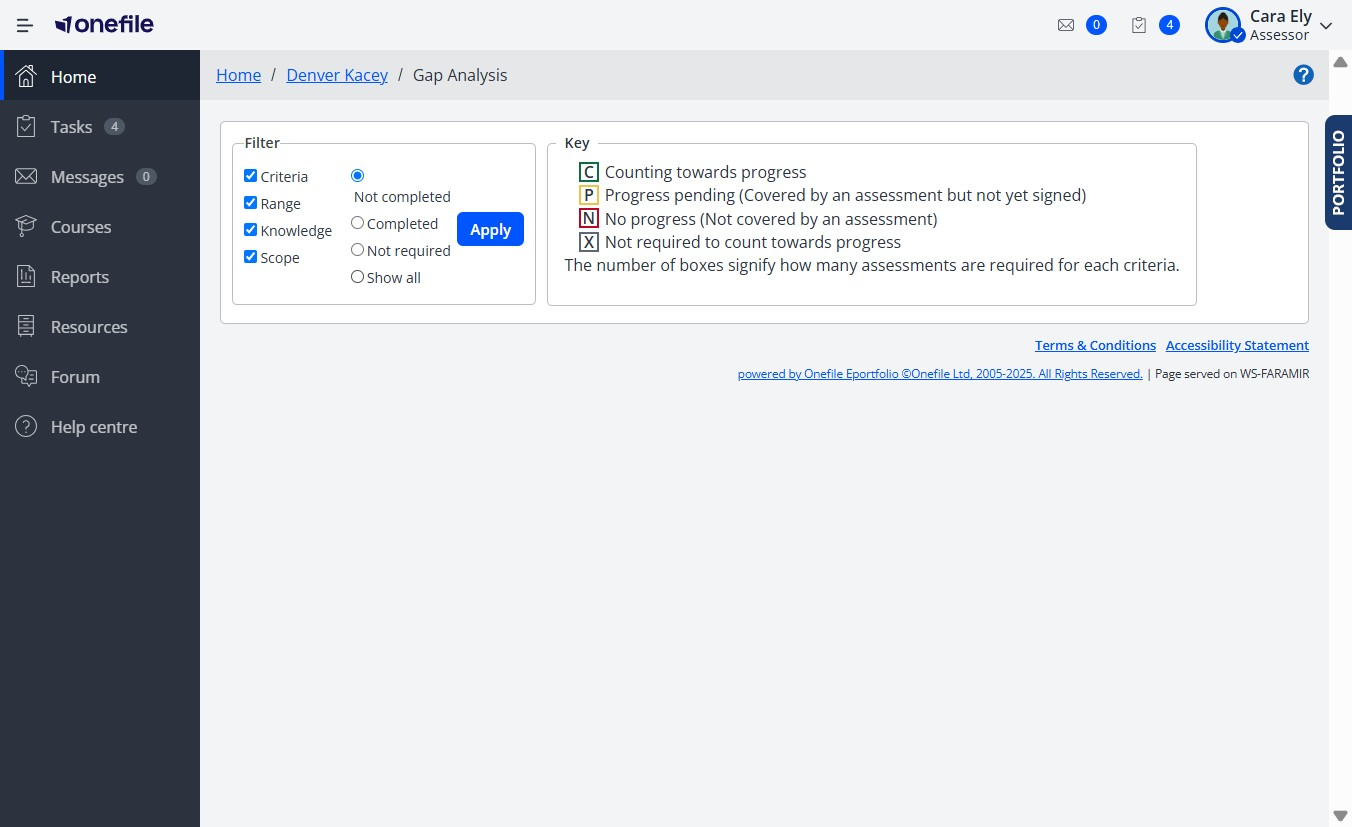
- Choose your desired Filters.
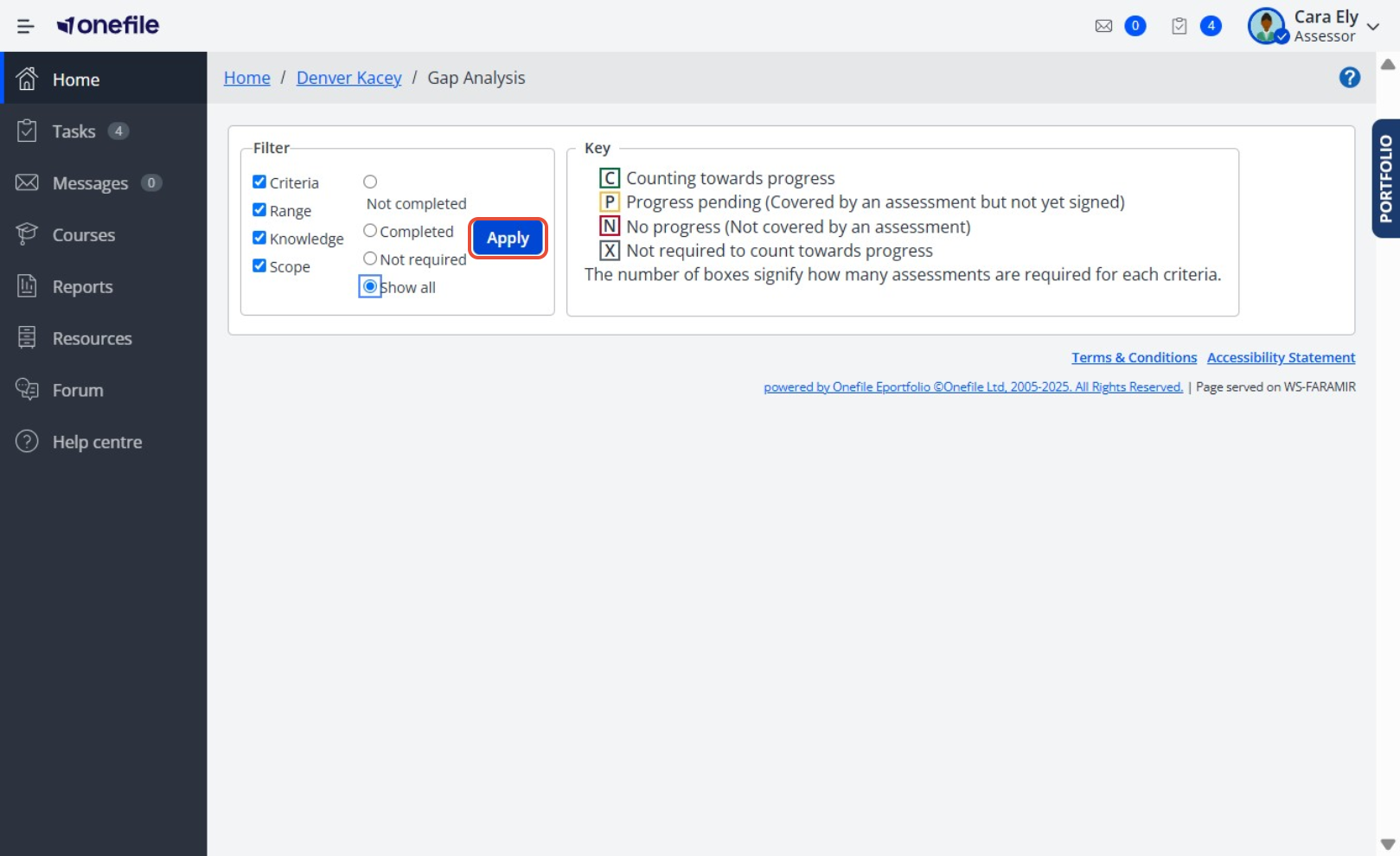
- Click Apply.
- Click Expand to view detailed criteria within each unit.
Understanding the Interface
- A key at the top of the page helps interpret progress indicators for each criterion.
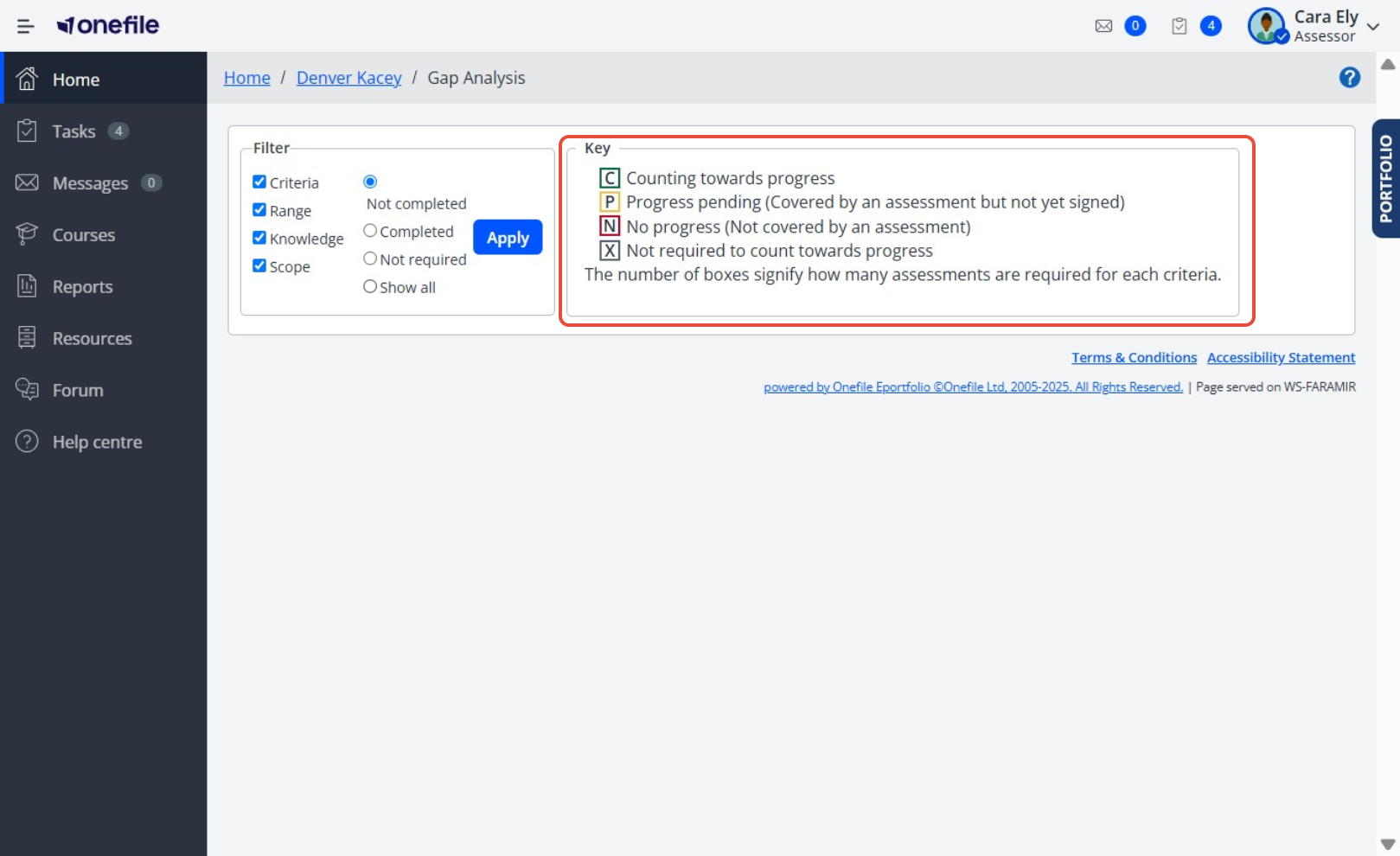
- The Progress column displays boxes representing the number of assessments that must include each criterion.

- You can also create Assessment Plan tasks directly from the Gap Analysis. [More information available here]
Tips & Notes
- If Consistency Rules are in place, the number of boxes next to each criterion indicates how many assessments are required for completion.
- Gap Analysis updates automatically as assessments are sampled, signed, or rejected.
- Archived learners’ Gap Analysis remains visible but will not update further.
Terminology
The terminology used in this article may differ depending on your Centre’s configuration.
Related Articles
Need Help?
If you encounter any issues or have questions, please contact Onefile Support or your internal support channels.