
Overview
The Cognassist integration enables two‑way communication between Onefile Eportfolio and your organisation’s Cognassist account. This integration supports learner assessment processes and allows assessment data to be viewed directly within a learner’s portfolio.
The integration provides the following functionality:
- Ability to create a learner in Cognassist from Eportfolio
- Send a learner an invitation email to complete their assessment
- Track the status of a learner’s assessment
- Display Cognassist assessment results within the learner’s portfolio
- Include assessment results within the learner’s ILP
How the Integration Works
Once the integration is enabled, Onefile will begin downloading user data from Cognassist. This process can take up to 24 hours (overnight) on first setup.
When new learners are detected, Onefile will:
- Match learners automatically where the email address matches in both systems
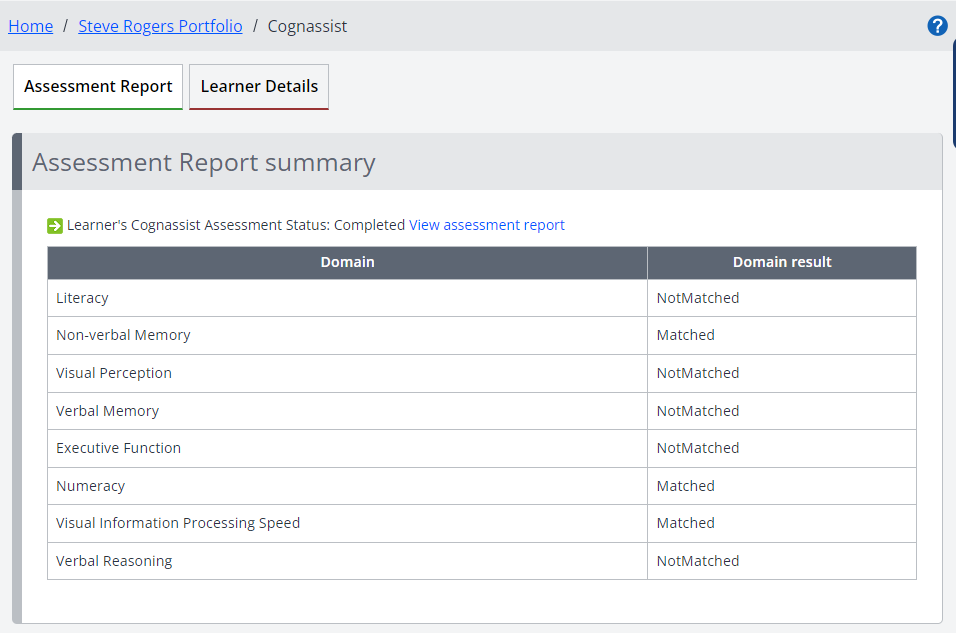
- Display matched assessment data immediately in the learner’s Cognassist page
- Require the learner’s email address to be verified before syncing
Viewing Cognassist Assessment Data
Once matched, a learner’s Cognassist assessment results will display directly within their Onefile Eportfolio. These results can also be included in the learner’s Individual Learning Plan (ILP).
Permissions
You can control who has access to Cognassist data and who can create Cognassist users within Onefile Eportfolio by adjusting permissions.
More information on permission settings can be found here:
User Permissions Guide
Adding Results to the ILP
Cognassist assessment results can be added directly to a learner’s ILP. For guidance on creating ILPs, refer to:
How to Create an ILP
Tips & Notes
- Ensure learner email addresses are correct and verified for successful matching.
- Initial syncing may take up to 24 hours depending on data volume.
- User role permissions control who can create or view Cognassist data.
Terminology
Terminology used in this article may vary depending on your Centre.
Related Articles
Need Help?
If you encounter any issues or have questions, please contact Onefile Support or your internal support channels.