
Overview
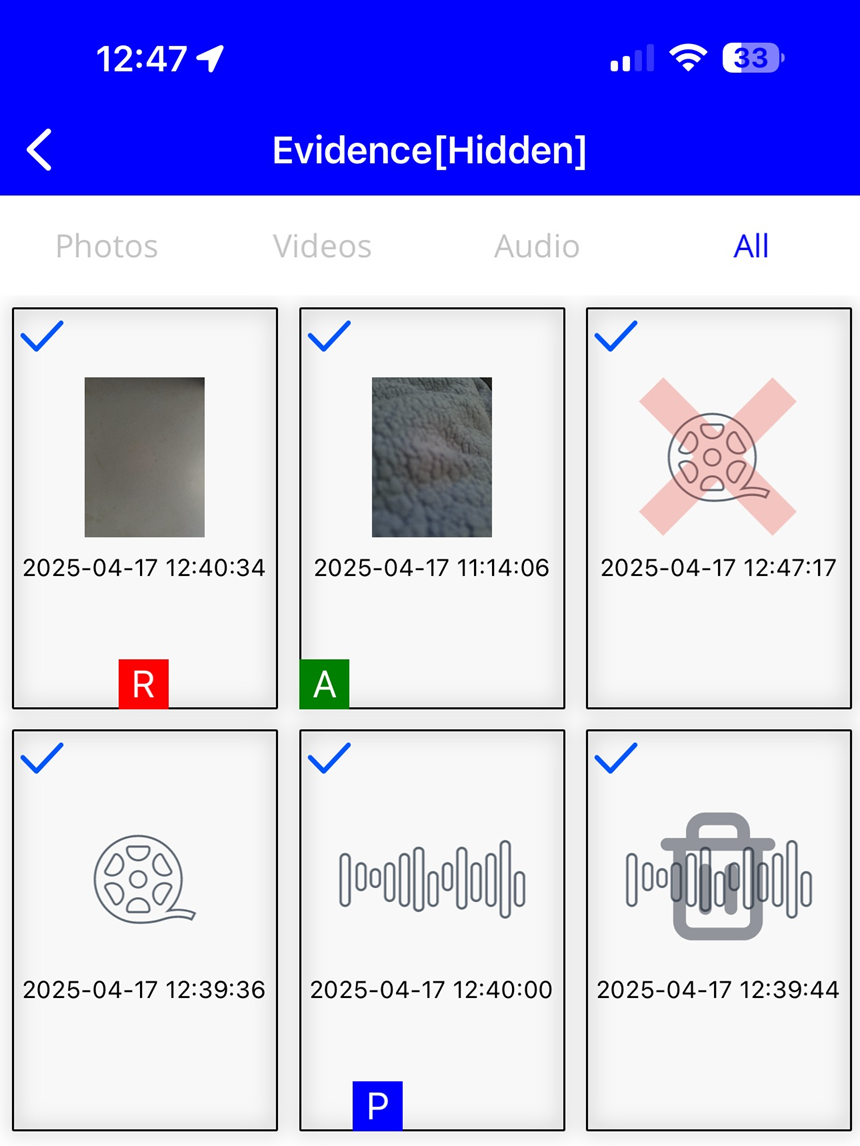
Evidence removed from the Onefile Eportfolio App is no longer permanently deleted. You can now view hidden or removed evidence directly within the app, making it easier to recover or review items that were previously cleared.
Steps to View Hidden Evidence
- Press and hold the Evidence button on the dashboard.
- The title bar will change to show Hidden evidence.
Icons Explained
- Bin – Trashed evidence
- R – Evidence attached to a Review
- P – Evidence attached to a Plan
- A – Evidence attached to an Assessment
Important Notes
- Deleting trashed items will permanently delete the evidence.
- You can share any evidence stored on the device.
- To select multiple items for sharing or deleting:
Press and hold the first evidence item, then tap to select more.
Terminology
The terminology used in this article may differ depending on your Centre’s configuration.
Related Articles
Need Help?
If you encounter any issues or have questions, please contact Onefile Support or your internal support channels.