
Overview
Centre Managers can enable automated reminder tasks for learners who have not logged Off‑the‑Job (OTJ) activity within a specified number of days. This helps support Active Learning requirements and ensures learners maintain regular OTJ entries.
User Roles
This feature can be used by:
- Centre Managers
Steps
How to Enable Reminder Tasks for OTJ Activity
- Click Centre in the navigation menu.
- Click Centre Settings.
- Scroll down to the Miscellaneous section.
- Locate the Timesheets sub‑heading.
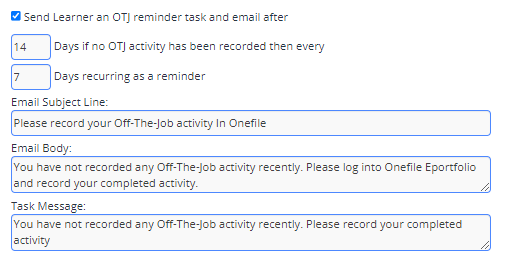
- Tick Send Learner an OTJ Reminder Task and Email after.
- Enter the number of days without OTJ activity before a reminder is sent.
- Click Save.
When Emails Will NOT Be Sent
An email reminder will not be sent if:
- The learner has disabled email alerts.
- The learner is archived.
- The learner is on a Break in Learning.
- The reminder date is before the learner’s start date.
- The reminder date is after the anticipated completion date.
- The learner’s email address is not verified.
More Information
If OTJ has been logged with a date after the task was created, a modal dialog will prompt the learner to confirm whether the task should be marked as complete.
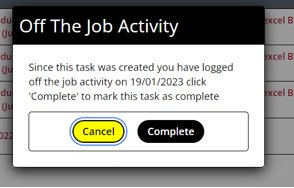
If no prompt appears, the learner can complete the task by clicking the Hidden button.
Tips & Notes
- Reminder tasks support Active Learning by encouraging frequent OTJ entries.
- Ensure learners understand how to record OTJ correctly to avoid unnecessary reminder tasks.
- Use the Activity Log to confirm when reminders were triggered.
Terminology
Terminology used in this article may differ depending on your Centre’s OTJ and Timesheet configuration.
Related Articles
Need Help?
If you encounter any issues or have questions, please contact Onefile Support or your internal support channels.