
Overview
In some learning aims, the awarding body states that learners only need to cover a specific number of criteria within a group of similar criteria — not every criterion in that group. This grouped criteria minimum is built into your standards automatically by the Onefile team, so it works without any action from you.
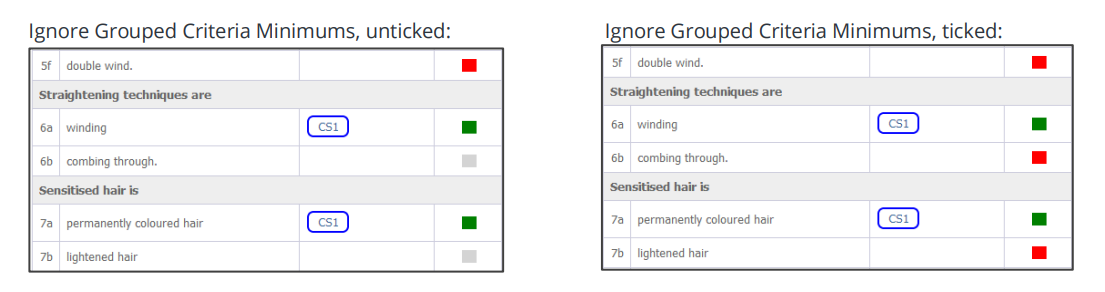
The Ignore Grouped Criteria Minimums setting lets you override this. When you tick the checkbox, the group minimum is ignored and all criteria within the group must be covered. You can see the effect at a glance from the coloured status boxes next to each criterion.
Understanding the Status Colours
| Colour | What it means |
|---|---|
| Green | The criterion has been covered. |
| Red | The criterion still needs to be covered. |
| Grey | The criterion does not need to be covered in this assessment. |
How the Setting Affects Grouped Criteria
The comparison below shows the same group of criteria with the setting unticked and then ticked.
| Unticked (default) | Ticked | |
|---|---|---|
| Group minimum | Applied, as set by the awarding body | Ignored |
| Criteria beyond the minimum | Shown grey — do not need to be covered | Shown red — must be covered |
| What the learner must do | Cover only the required number of criteria in each group | Cover every criterion in each group |
⚠️ Important: Ticking this checkbox,"Ignore Grouped Criteria Minimums" increases the amount of evidence required, because criteria that were previously optional become mandatory. Only enable it if you genuinely want the learner to demonstrate all criteria in the group.
User Roles
This setting is typically managed by:
- Centre Managers
The grouped criteria minimums themselves are configured by the Onefile Customer Support team as part of your standards.
Steps to Enable or Disable This Setting
- Log in to Onefile Eportfolio.
- Click Centre
- Locate the Ignore Grouped Criteria Minimums checkbox.
- Tick the checkbox next to the learning aim to require every criterion within each group to be covered.
- Leave it unticked to keep the awarding body's group minimum, so only the required number of criteria in each group need to be covered.
- Click Save
Tips & Notes
- Grey boxes indicate that a criterion does not need to be covered in an assessment.
- When you tick the setting, any grey (optional) criteria turn red, meaning they now need to be covered and learner progress may change.
- The default behaviour already reflects the awarding body's requirements, so you only need to change this if you want learners to complete more than the minimum.
- If you think the built-in minimum for a standard is incorrect, contact the Onefile Support rather than adjusting this setting as a workaround.
Terminology
The terminology used in this article may differ depending on your Centre's configuration.
Need Help?
If you need assistance, please contact Onefile Support or your internal support team.